🛠️ Installation Guide
Step 1: 📱 Android Devices
If you have an Android device which can access the web browser and allows you to download, you can enter our download links and download our apps directly onto your Android device.
Continue to Step 2 for Direct Download links.
Continue to Step 3 for Fire TV / Firesticks / Fire Cube & Android TVs.
Step 3: 🔥 Fire TV & Android TV
Watch the video above.
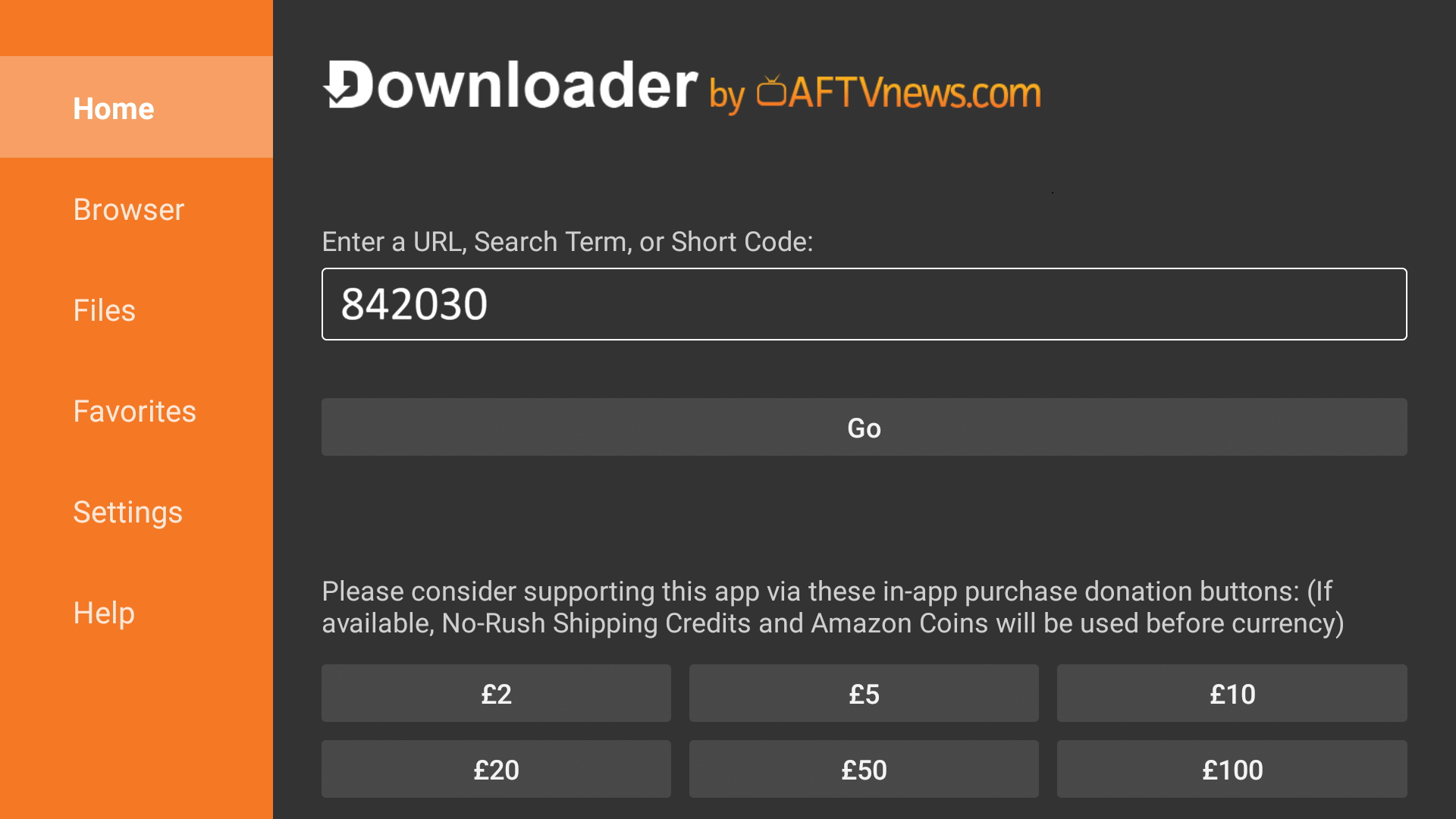
Once you’ve watched the video and have downloaded and installed the Downloader app on your Fire device, open the application, insert the code into the box shown in the picture below and press Go.
Step 4: 📦 Install the App
Our app should now start downloading onto your Fire device.
Now just install the app and open it.
Step 5: 📺 Choose Your Provider
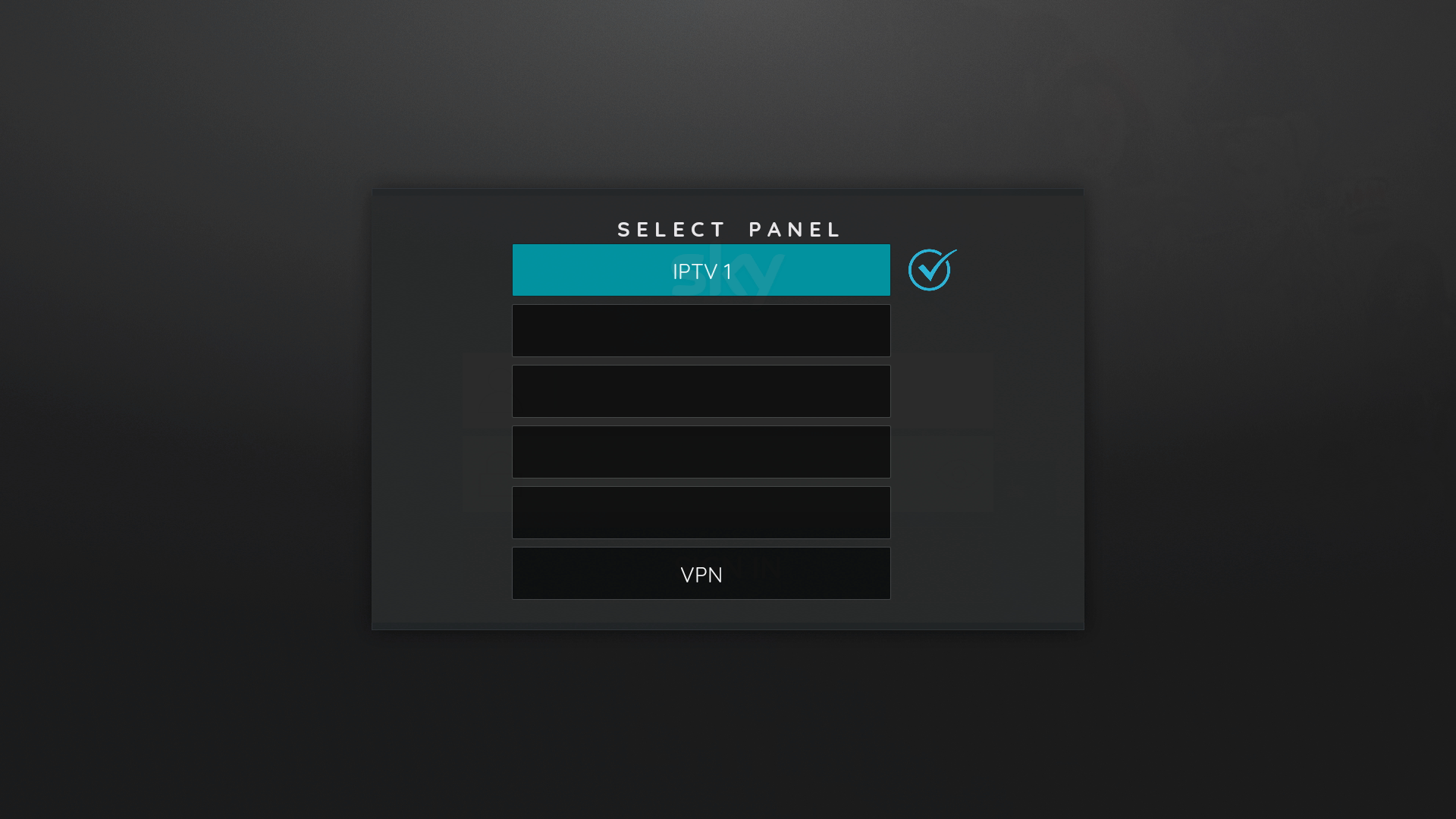
Once you’ve opened the app, you should see this screen.
Choose the provider you have received the login details for.
Step 6: 🎉 Watch
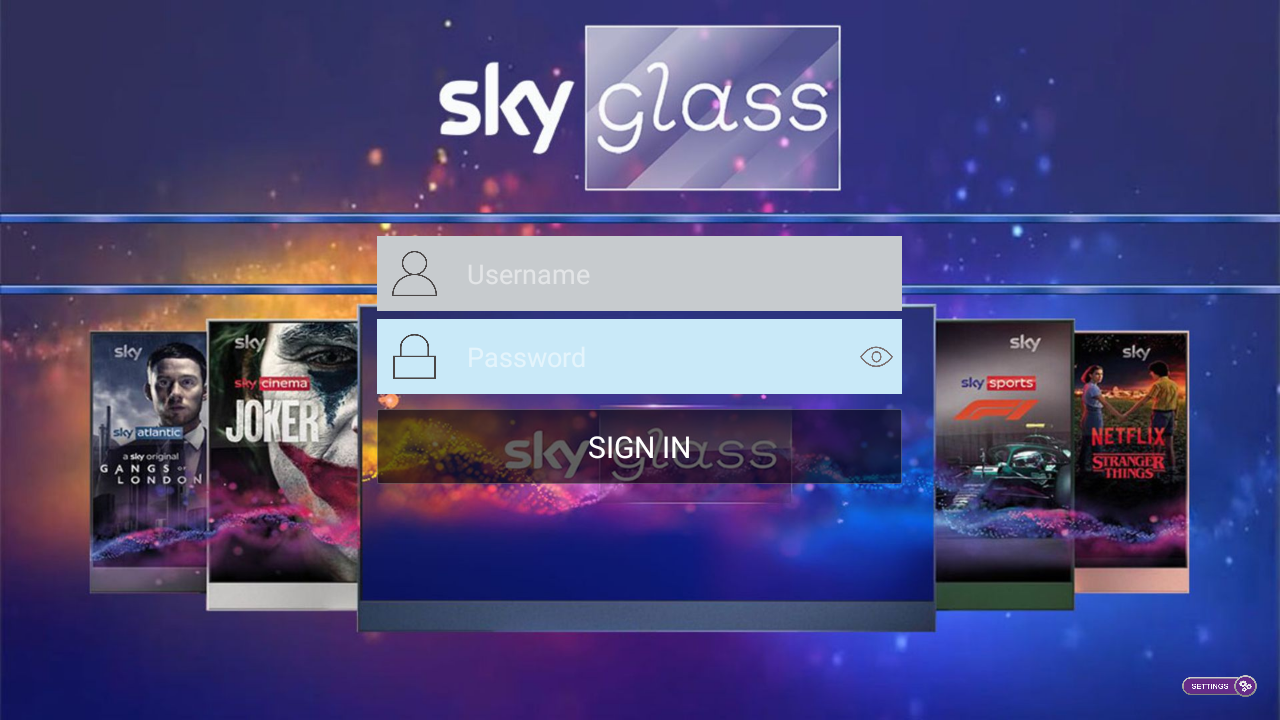
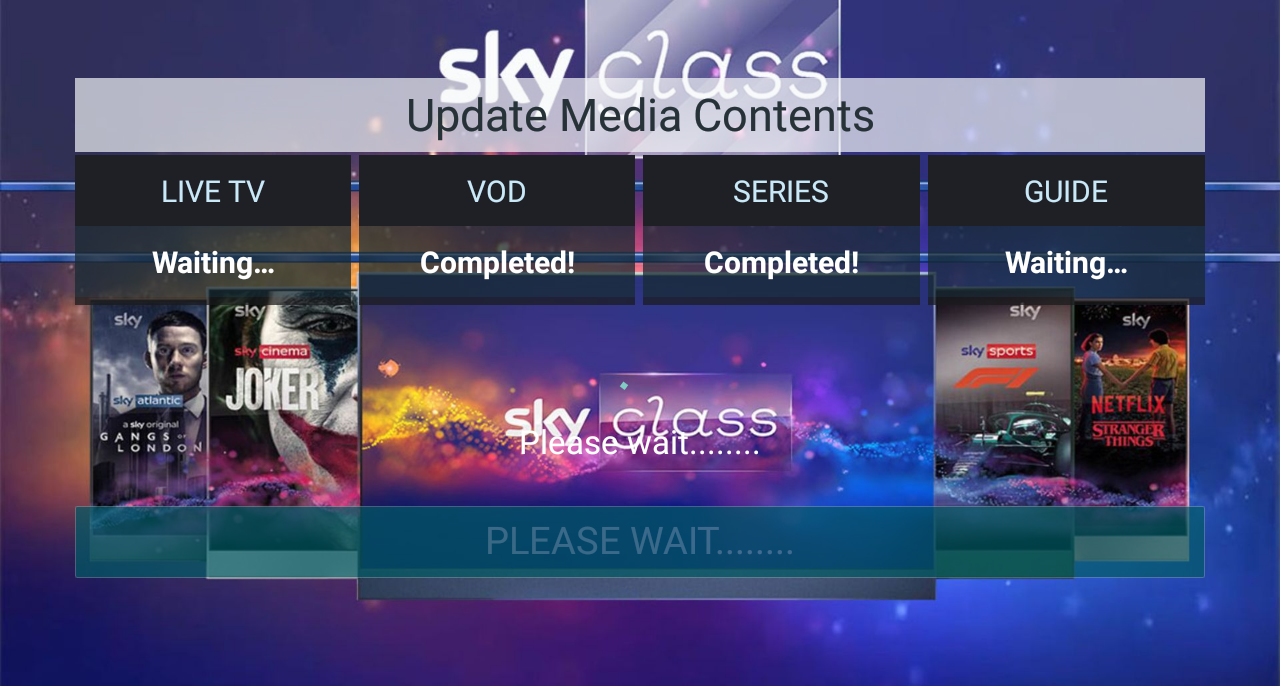
Once logged in, it will automatically refresh and bring our latest content to your screen.
⚙️ Other Functions
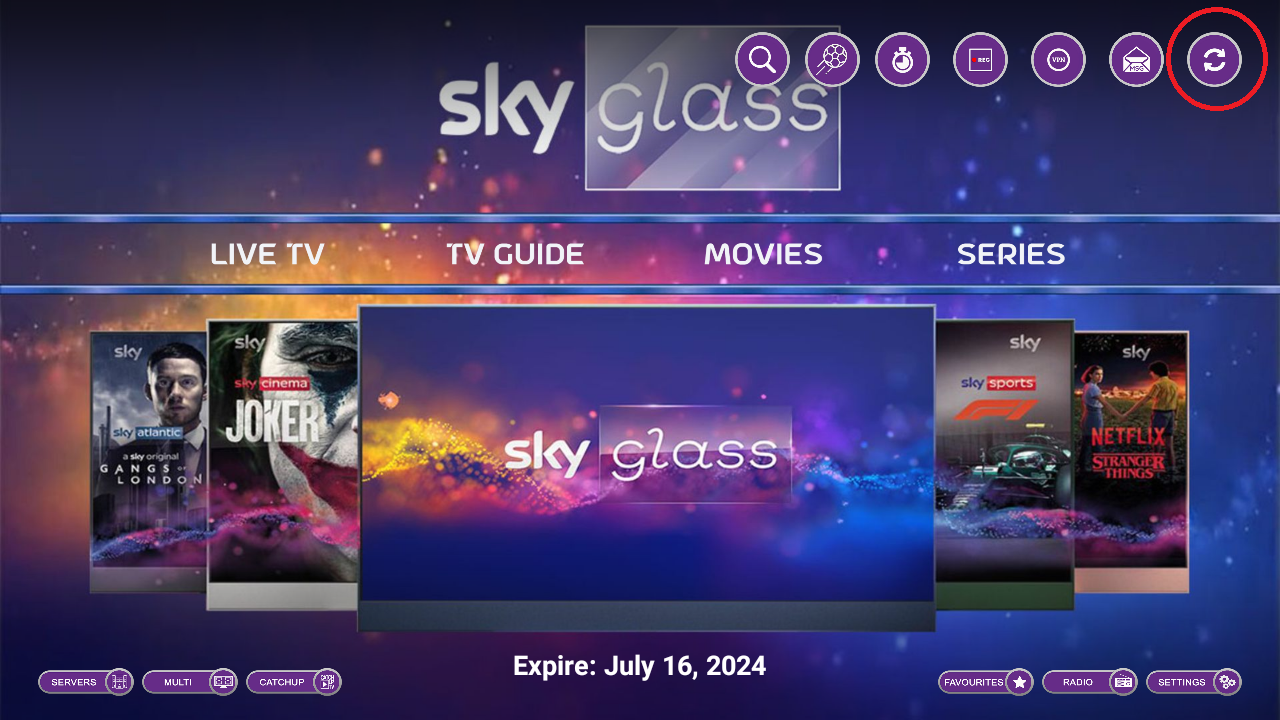
🔄 How to Refresh the Content?
📣 Please remember to do this when PPV events are coming on so that you have an up-to-date list.
Click on the Reload button on the top right of the app.
➕ How to Add Multiple Providers?
⚠️ Note: You must have purchased two different subscriptions from us, meaning from the other providers on our Home Page.
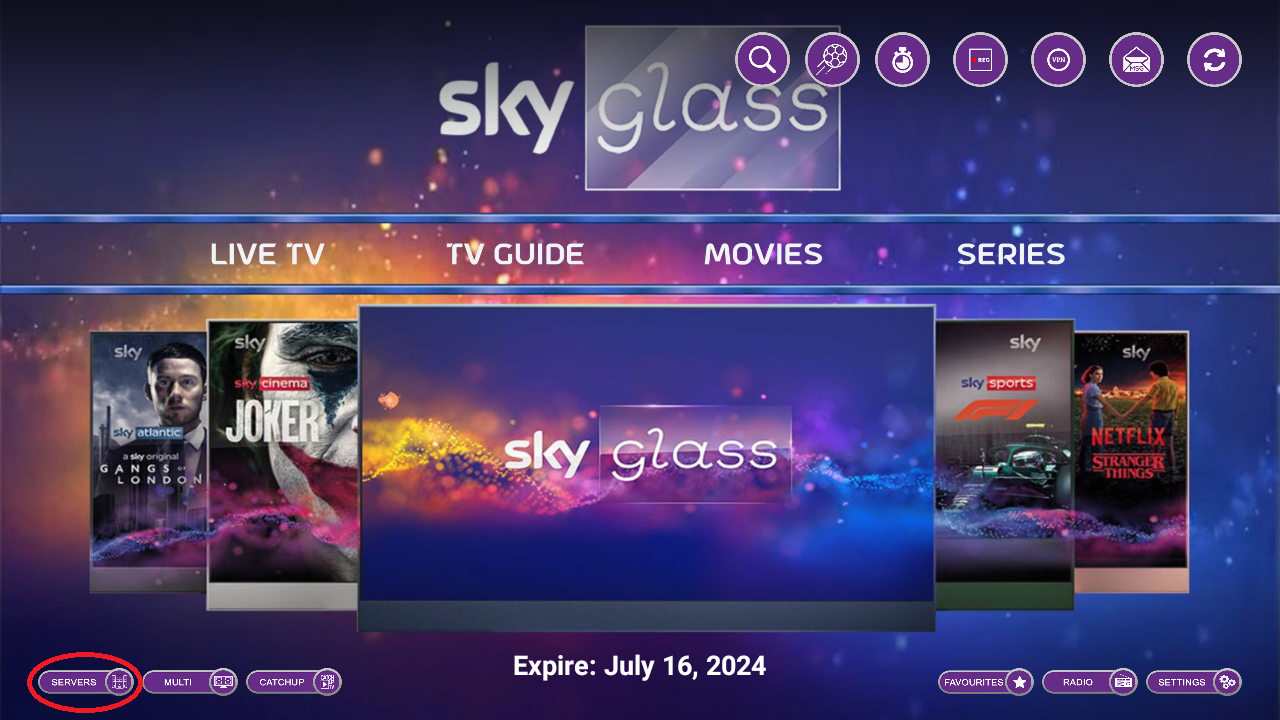
Go to Servers.
Now, choose which other provider you want to add by selecting it.
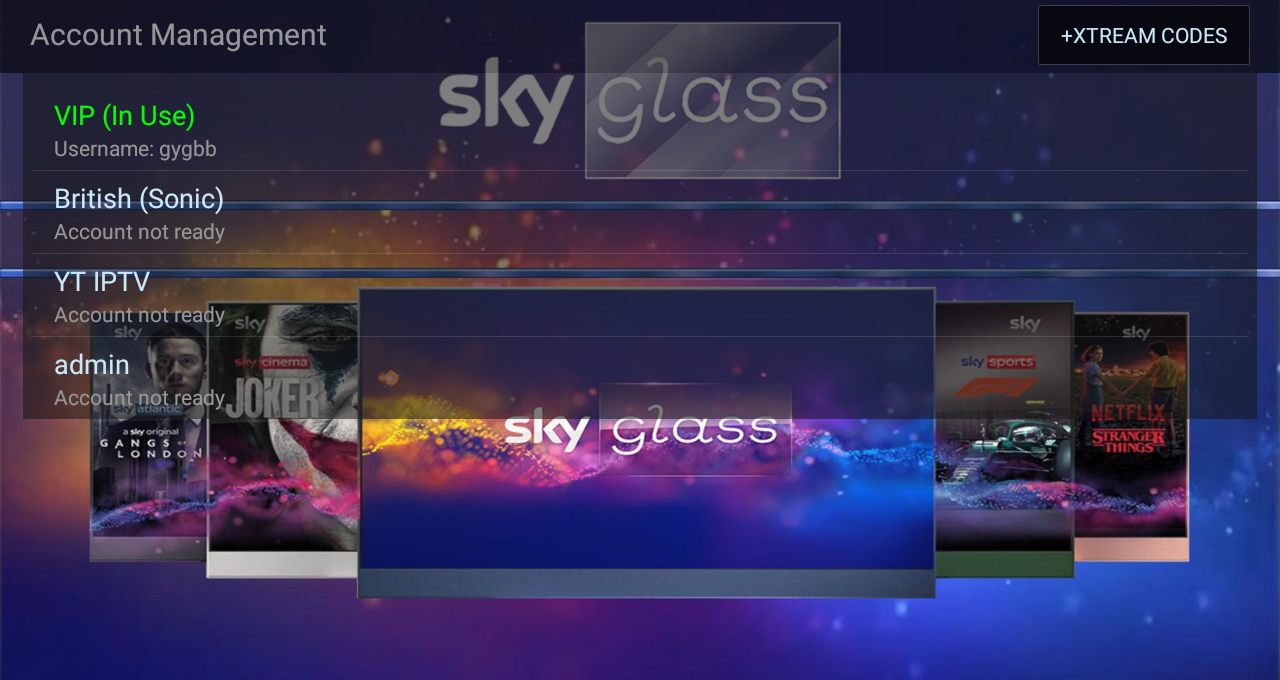
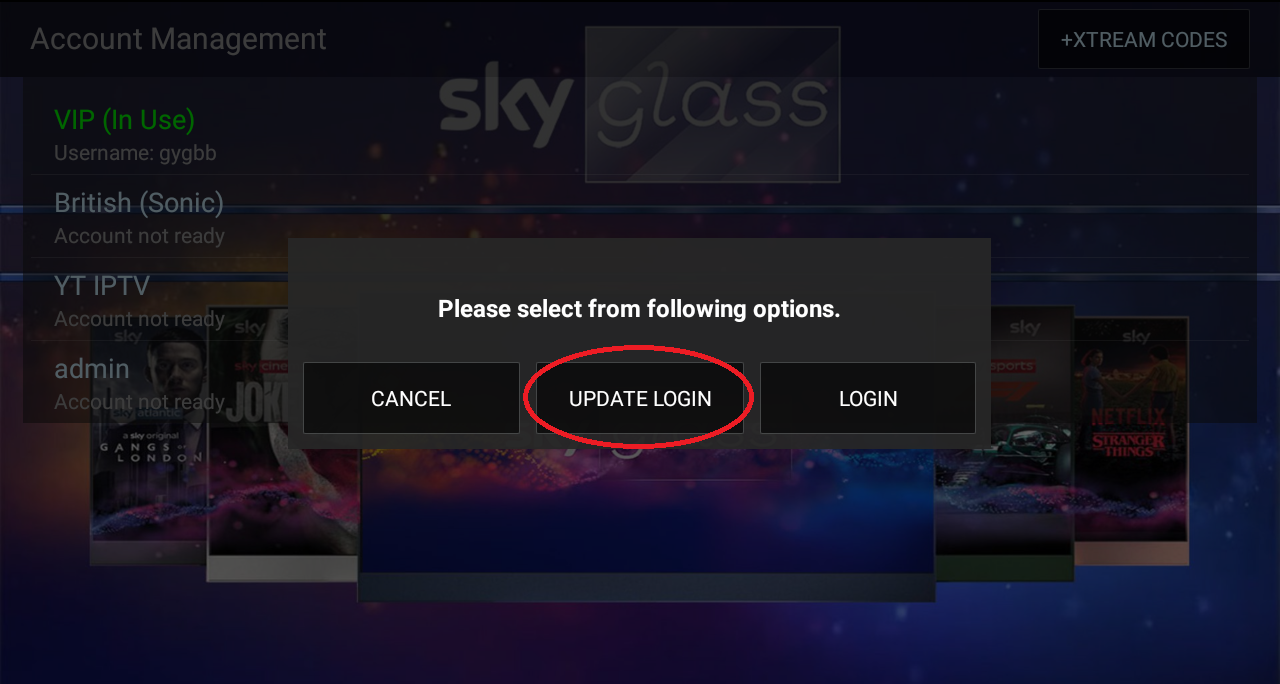
Once you’ve chosen the provider, a window will pop up showing these options. Select Update Login.
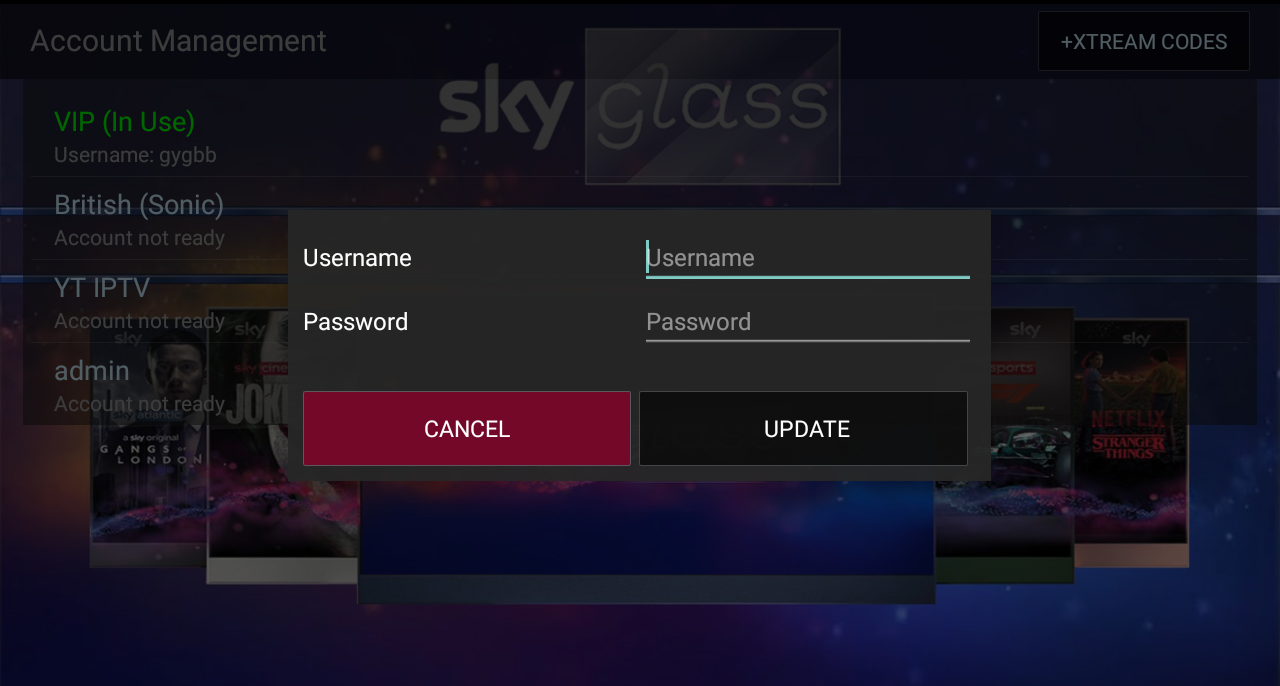
Another window will pop up asking you to enter your credentials. Once you’ve entered them, click on Update.
🔀 How to Switch Between Providers?
⚠️ Note: You must have purchased two different subscriptions from us, meaning from the other providers on our Home Page.
Also, make sure you have already inserted your login details.
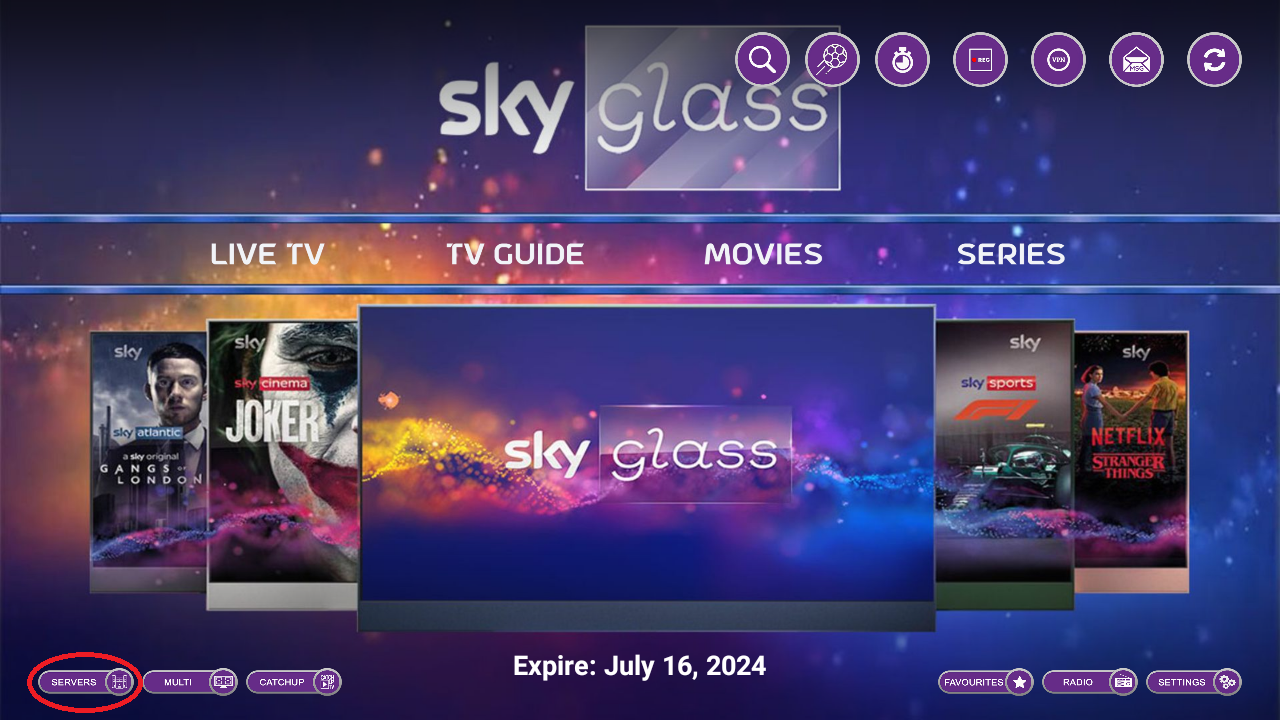
Go to Servers.
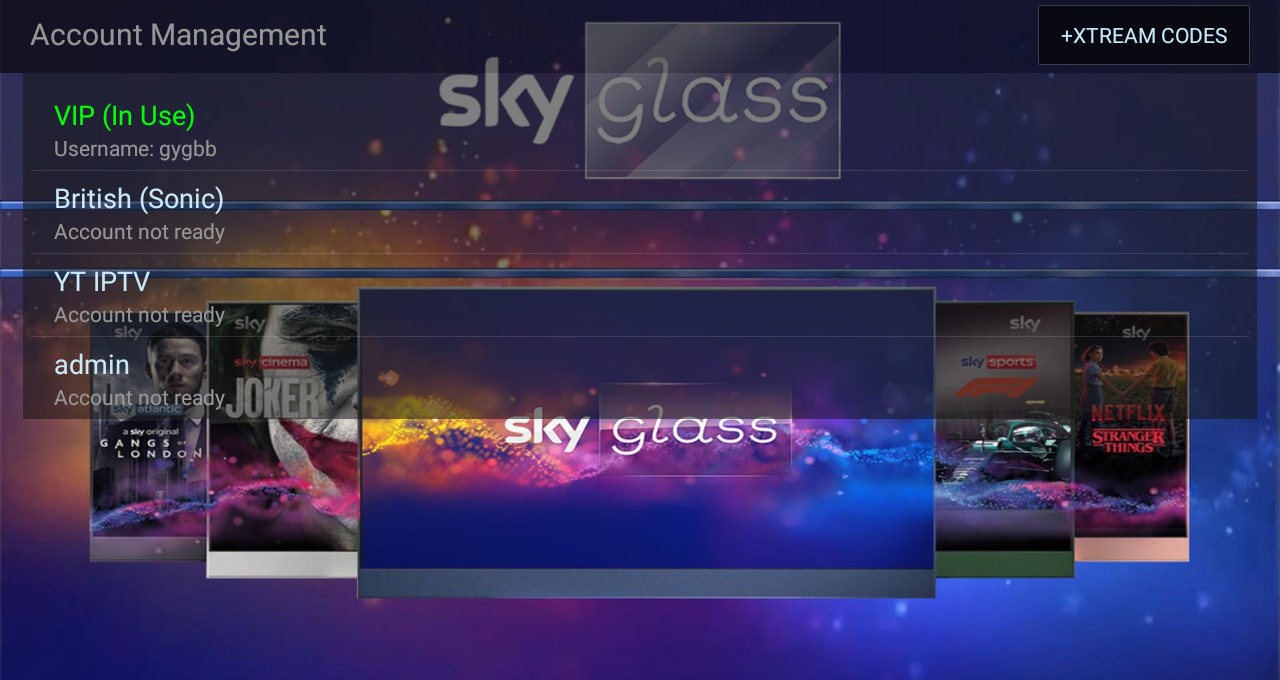
Now, choose which other provider you want to watch by selecting it.
Once you’ve chosen the provider, a window will pop up showing these options. Select Login.
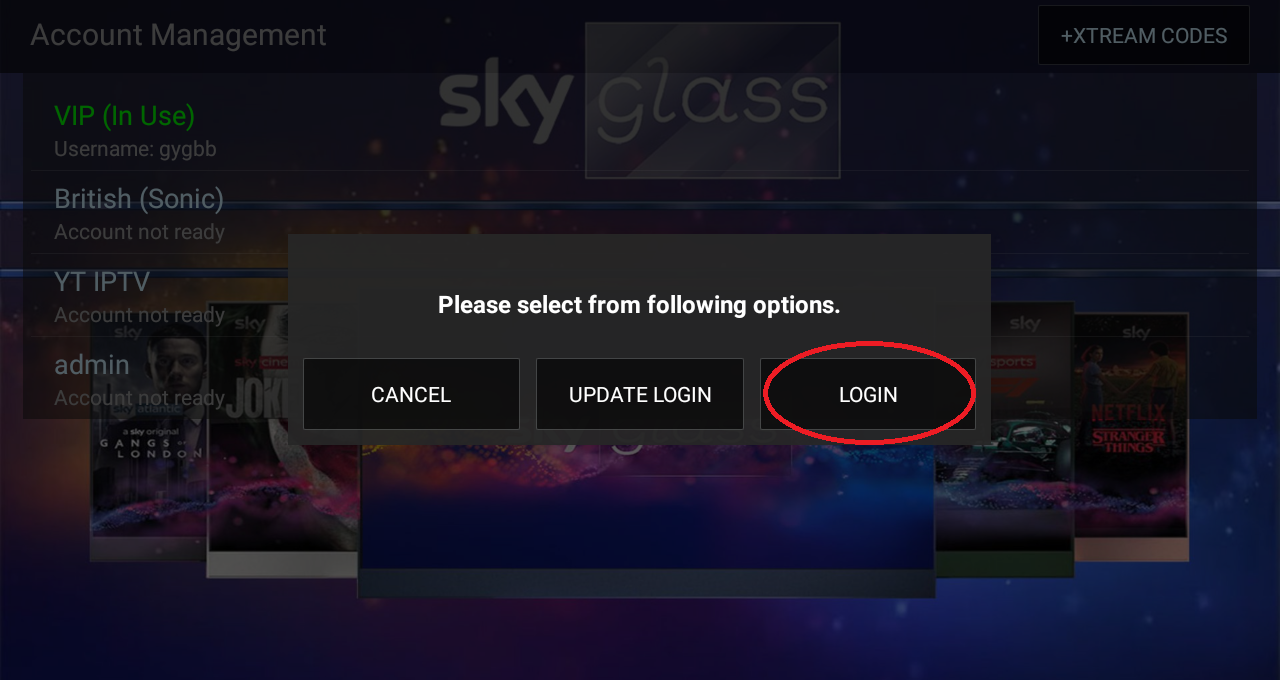
Now the app should update and bring the latest content from the provider.